
Shopify’s 25 Automatic Discount Limit: How AIOD Helps
Run more promotional rules within Shopify’s 25 automatic discount limit. Learn how to group, configure, and test offers with AIOD Combined Multi Discounts.
You can run more than 25 individual promotional rules with AIOD by grouping compatible rules inside Combined Multi Discounts. Each combined offer contains multiple discount blocks under one automatic discount. Shopify still limits the store to 25 active automatic discounts, including those created by apps.
For example, 10% off one collection and 20% off another can be two blocks in the same AIOD offer. You keep both collection offers while using one active automatic discount instead of two. This guide shows how to configure that setup and extend it to a larger promotion schedule.
What does Shopify’s limit of 25 automatic discounts mean?
The limit counts active automatic discounts across your store, including app-based discounts. Creating a separate automatic discount for every collection or promotion can use up that allowance. If all 25 are active, free a slot before activating another.
Shopify’s automatic discount limit
In AIOD, a combined offer is the parent discount. Discount #1, Discount #2, and the additional blocks inside it describe the individual rewards and their conditions. Adding a block to that offer does not create another separate automatic discount.
How AIOD supports more than 25 promotional rules
Use Combined Multi Discounts to group offers that share their overall schedule, customer eligibility, and activation status. Each block can target a different collection, use a different discount value, or have its own qualifying conditions. The combined offer can include Product Discount, Free Gift, Shipping Discount, and Order Discount blocks.
Example: 30 collection offers using 10 automatic discounts
Suppose you have 30 collection promotions. Creating one automatic discount per collection would require 30 active discounts. Instead, group three compatible collection offers into each of 10 combined offers. That gives you 30 promotional rules using 10 active automatic discounts.
| Setup | Promotional rules | Active automatic discounts |
|---|---|---|
| Separate discount for each collection | 30 | 30, above Shopify’s limit |
| 10 combined offers, each with 3 collection blocks | 30 | 10 |
| The same combined setup plus 5 other active automatic discounts | 30 grouped rules, plus 5 other discounts | 15 total |
This is a planning example, not a promise that every set of rules will fit in a single offer. AIOD shows a Rule Size indicator in the editor; the supplied screenshots show a 10 KB limit. Conditions and selected items affect the configuration size. Watch that indicator as you add blocks, and split larger setups across additional combined offers when needed.
Only blocks whose conditions match the customer’s cart should apply. Having 30 rules available across your store does not mean a customer receives all 30 rewards on one order.
If you have already reached the limit
- Open Shopify admin > Discounts and filter for automatic discounts. Review which ones are active, including those created by other apps.
- Identify an expired or unnecessary offer you can deactivate. If every offer is needed, choose compatible promotions to consolidate and plan when their replacements will go live.
- Deactivate an offer to free a slot before activating a new combined automatic discount. Return to AIOD and retry activation after confirming the change.
Deactivating an offer stops its promotion. Record the original targets, values, conditions, dates, and combination settings before replacing it so you can recreate the intended behavior and restore it if necessary.
Create a Combined Multi Discount in AIOD
1. Open the Combined Multi Discounts template
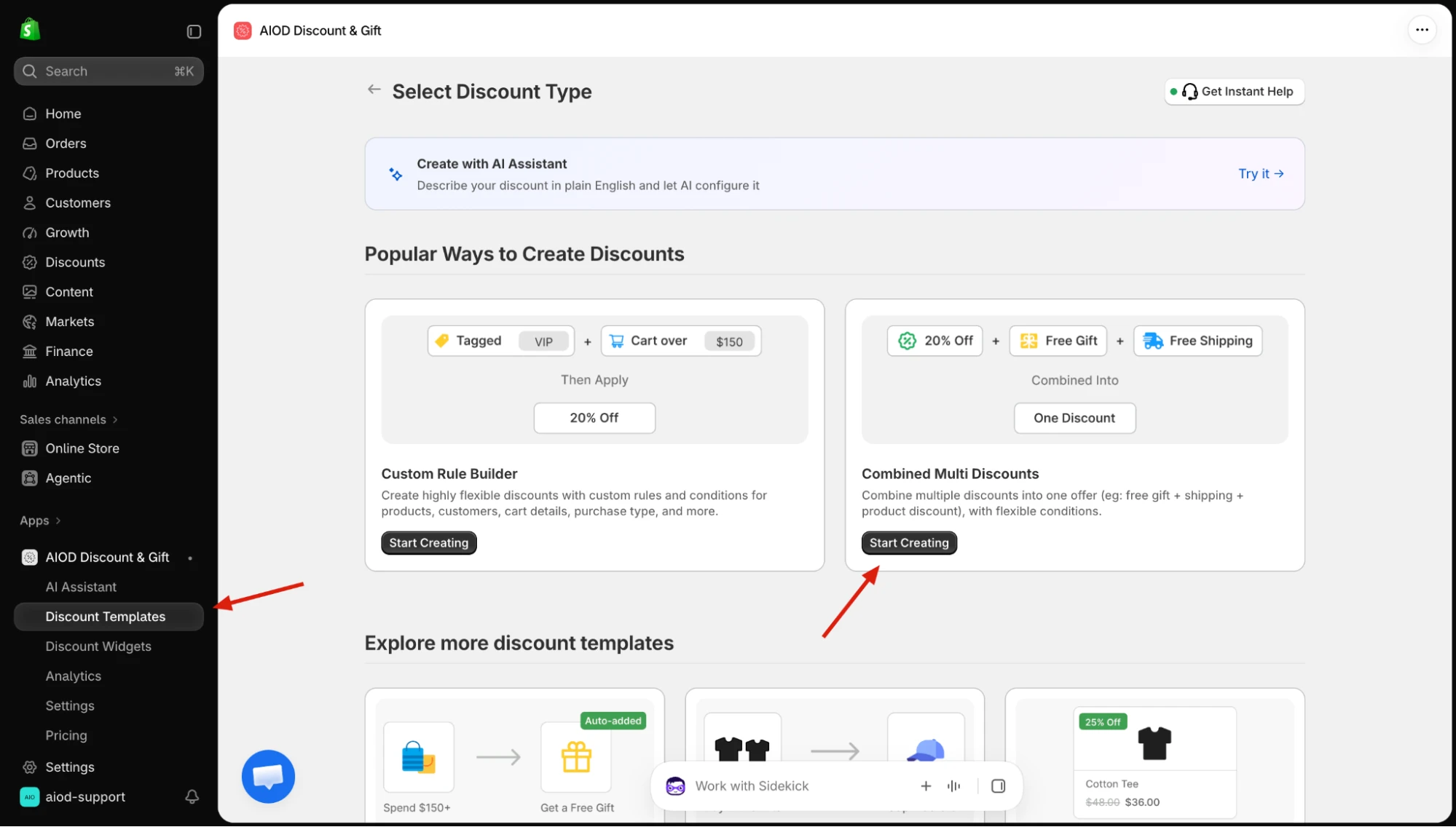
In Shopify admin, open Apps > AIOD Discount & Gift > Discount Templates. Find Combined Multi Discounts and click Start Creating. Some versions label this button Create. The form opens as Combined Discount.
2. Choose Automatic discount and name the offer
Set Discount Method to Automatic discount. Use Discount ID (For your reference) to give the campaign an identifiable name, such as October collection offers. Check the customer-facing Title as well. Choose Testing while preparing the setup, then review its status and dates before making it Live.
The discount method applies to the whole combined offer. Choosing Discount code would require a code to unlock its eligible blocks, so use Automatic discount for this walkthrough.
3. Configure Discount #1 for Collection A
- Select Product Discount as the block type.
- Under Apply discount to, choose Apply Discount to Specific Collection, click Select collections, and select your first collection.
- Choose Percentage as the discount type and enter 10 as the discount value.
- Set When to apply this discount to Always if every otherwise-eligible purchase of those collection items should qualify. Add block conditions if the offer requires a minimum spend, quantity, or another condition.
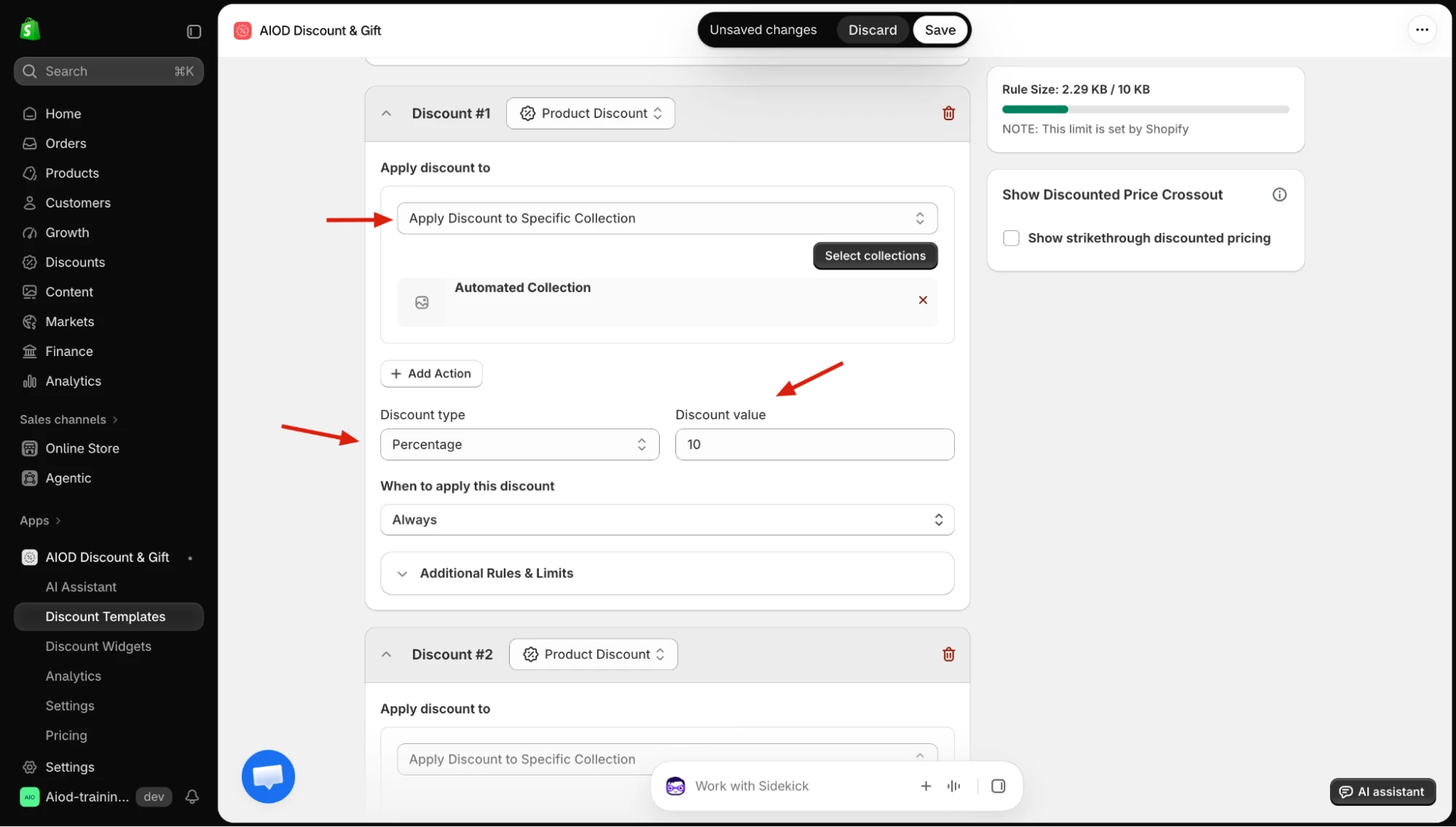
In this example, Always applies within the selected collection target and the combined offer’s overall eligibility settings. It does not change the target to the entire catalog.
4. Configure Discount #2 for Collection B
Set the second block to Product Discount, select a different collection, and enter a Percentage value of 20. Review its When to apply this discount setting separately. The screenshots use Automated Collection and Hydrogen as sample collection names; select your own collections in the picker.
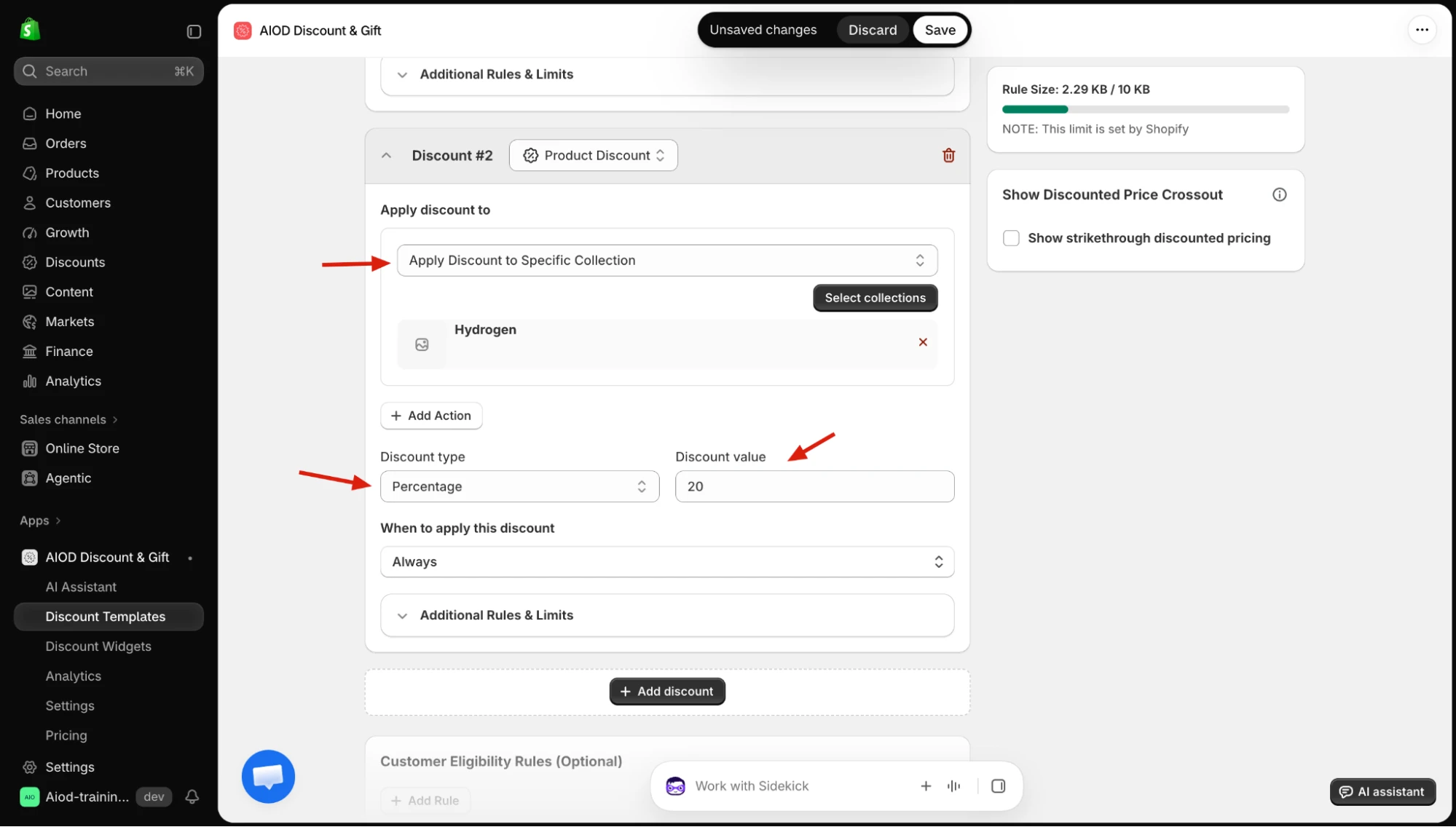
For a cart with a $100 eligible item from Collection A and a $100 eligible item from Collection B, the intended result is $10 off the first item and $20 off the second. The two items total $170 before tax and shipping, assuming no other discounts or exclusions apply.
5. Add more discount blocks
Click Add discount beneath the blocks to add another rule. Some versions label it Add New Discount. Select the block type, target, value, and conditions for each additional offer. To reproduce the 30-offer example, configure three collection blocks per combined offer and repeat for the other campaign groups.
You can also add a Free Gift or Shipping Discount block when that reward belongs to the same campaign. Put a condition on that block when the reward has its own requirement, such as a cart subtotal threshold. Check Rule Size as the configuration grows.
6. Review the settings shared by all blocks
- Customer Eligibility Rules and Extra Conditions: these restrict the combined offer as a whole. Put a condition inside an individual block when it should affect only that reward.
- Active Dates and status: the blocks share the parent offer’s activation schedule. Keep offers with independent start or end dates separate unless you can express their requirements correctly in the available controls.
- Sales channel and purchase type: check where the offer should run and whether it applies to one-time purchases, subscriptions, or both.
- This discount can be combined with: review how the offer interacts with other active discounts. Check overlapping product targets instead of assuming their percentages will add together.
Shopify’s discount combination rules
7. Save, test, and activate
Save the combined offer and test each block before switching it to Live. Verify the following carts, including the final checkout amounts:
- An item from Collection A only: it receives the intended 10% discount.
- An item from Collection B only: it receives the intended 20% discount.
- One item from each collection: both eligible lines receive their intended discounts.
- An item outside both collections: neither collection block discounts it.
- An item that belongs to both collections: confirm the actual result and adjust overlapping targets or rules if needed.
- A cart just below and just above each conditional threshold: verify the reward appears and disappears correctly.
- A cart with another active discount or discount code: check eligibility and the resulting combination.
After activation, return to Shopify admin > Discounts to confirm the new automatic discount is active. When replacing separate offers, deactivate the originals as part of the switch so customers do not receive unintended overlapping promotions. If the store is already at 25, free capacity before trying to activate the replacement.
When should you keep offers separate?
Group offers when their shared settings match. Keep separate discounts for campaigns that need independent activation, schedules, or top-level eligibility. Also split a combined offer when its rule configuration reaches the size limit shown in the editor.
Consolidation reduces the number of active automatic discounts used by your promotions. It does not remove Shopify’s discount combination rules, the editor’s rule-size constraint, or the need to test overlapping offers.
Frequently asked questions
Can AIOD activate a 26th separate automatic discount?
No. Shopify’s store-wide maximum remains 25 active automatic discounts. AIOD lets you place multiple promotional rules inside a combined automatic discount, reducing the number of separate discounts needed.
Can I put more than 25 rules in one combined offer?
Combined Multi Discounts lets you add additional blocks, but the number that fits depends on the configuration and the Rule Size limit shown in the editor. You do not need all your rules in one offer to run more than 25 promotional rules across the store; distribute compatible groups across several combined offers within the active-discount limit.
Do all blocks need the same percentage or collection?
No. Each product block can have its own target, discount value, and qualifying conditions. The example uses 10% for one collection and 20% for another. Overall eligibility, status, and scheduling are shared by the combined offer.
Will AIOD automatically merge my existing discounts?
This walkthrough creates a new combined offer. Recreate the required rules as blocks, test them, and deactivate the old discounts when switching over. Adding a new combined offer does not by itself consolidate or deactivate the separate offers already in your store.
Build your combined offer
Start with two collection rules using the example above. Once the test carts return the expected amounts, add the remaining compatible blocks and check the active-discount count. For an existing store with many promotions, keep a list mapping each original offer to its replacement block so no rule is missed.